A slow WordPress site costs more than patience. Visitors leave before the page finishes loading, forms get fewer submissions, and Google has a harder time crawling and ranking pages that drag. For agencies, a slow client site also means support tickets, awkward calls and the risk that the client starts looking for someone who can fix it.
The good news is that most WordPress speed problems come from the same handful of causes: weak hosting, missing caching, heavy images, too much JavaScript, bloated plugins and a database nobody has cleaned in years. This guide walks through how to speed up a WordPress website step by step, from measuring the problem correctly to fixing Core Web Vitals, with 25 practical fixes, a full checklist and a realistic example of how the work is done on a live client site.
Why WordPress Speed Matters
Speed is not a vanity number from a testing tool. It affects how many people stay on the site, how many of them become leads or customers, and how easily search engines can work with your pages. A fast site quietly supports every other marketing effort, while a slow one undermines them.
It also matters because WordPress performance tends to decay over time. A site that launched fast slowly gains plugins, tracking scripts, larger images and database clutter. Without regular attention, the same site can lose seconds of load time within a year, even if nobody made a single “big” change.
Speed and Search Rankings
Google uses page experience signals, including Core Web Vitals, as part of how it evaluates pages. Speed alone will not push a weak page to the top, but between two pages of similar quality, the faster and more stable one has an advantage. Slow servers also limit how much of the site Google crawls, which matters for larger sites with many pages.
There is an indirect effect too. When pages load slowly, visitors return to the search results more often and engage less with the content. Fixing speed removes a constant drag on everything your SEO work is trying to achieve.
Speed and Conversions
Every extra second between the click and a usable page gives the visitor a reason to leave. This is especially true on mobile, where connections are slower and patience is shorter. Contact forms, booking widgets and checkout pages are usually the heaviest pages on a site, which is exactly where delays cost the most.
For service businesses, that means fewer calls and enquiries. For online stores, it means abandoned carts. Speed improvements often show up first in these numbers, before any change in rankings.
How to Measure WordPress Speed Before You Change Anything
The most common mistake in WordPress speed optimization is changing settings before you know what is actually slow. Measure first, write the numbers down, and then fix the biggest problem. Without a baseline, you cannot prove that your work helped, and you may spend hours on a setting that was never the bottleneck.
Test the homepage, but also the pages that matter for the business: a key service page, a blog post, a contact page and, for stores, a product and the checkout. Different templates have different problems, and the homepage is rarely the slowest page on a site.
| Tool | What It Shows | Best Used For |
|---|---|---|
| Google PageSpeed Insights | Lab scores plus real-user field data from Chrome | Checking Core Web Vitals and Google’s view of the page |
| GTmetrix | Waterfall chart, page size, number of requests | Finding exactly which files slow the page down |
| WebPageTest | Detailed tests from different locations and devices | Deeper diagnosis, comparing before and after |
| Google Search Console | Core Web Vitals report for groups of real URLs | Seeing which templates fail across the whole site |
| Query Monitor (plugin) | Slow database queries, hooks and plugins | Finding the backend cause of a slow server response |
Keep in mind the difference between lab data and field data. Lab tests run once in a controlled environment and are great for debugging. Field data comes from real visitors over the last 28 days and is what Google actually uses for page experience. A page can score well in a lab test and still fail in the field, usually because real visitors use slower phones and networks.
The Metrics That Matter
Testing tools show dozens of numbers, but only a few of them deserve most of your attention. These are the metrics that describe how fast the server responds, how quickly the main content appears, how quickly the page reacts and whether the layout stays stable while it loads.
| Metric | What It Measures | Good Target |
|---|---|---|
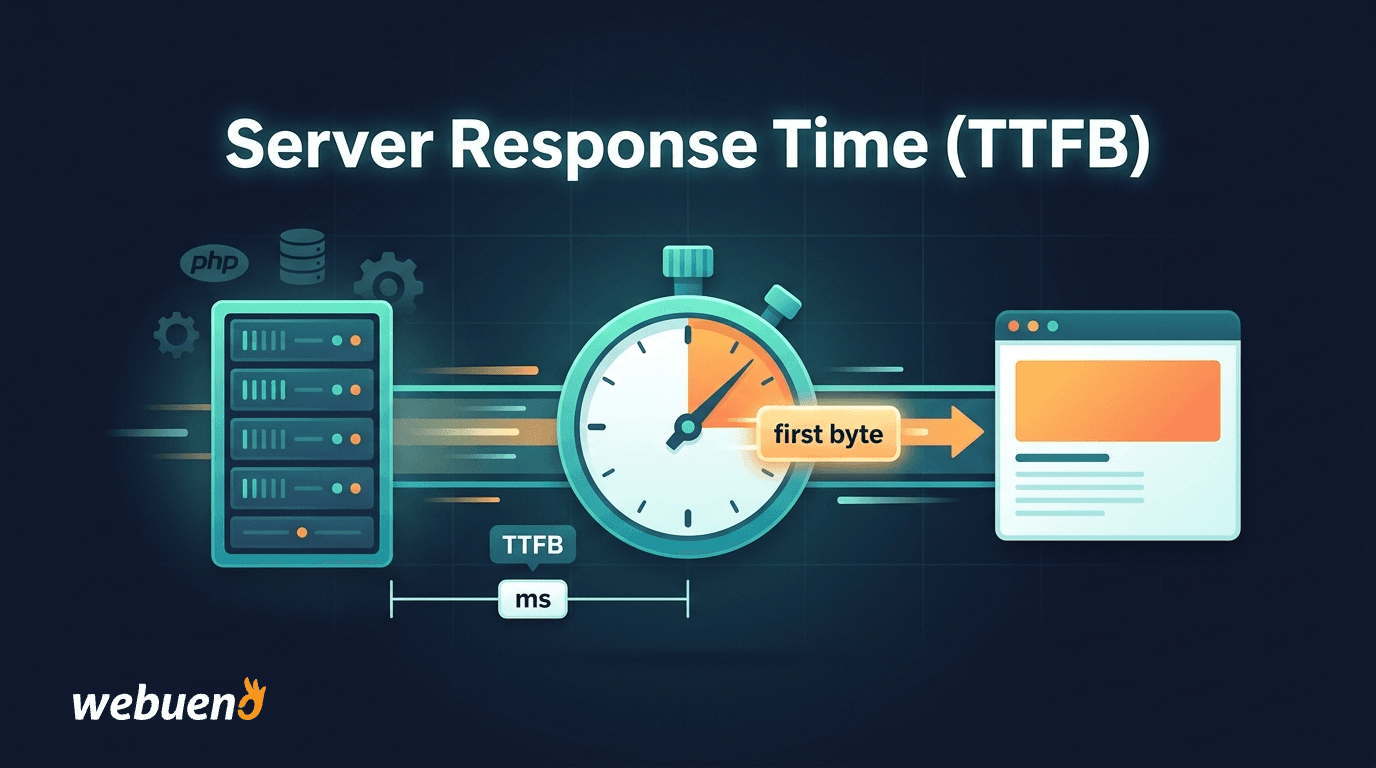
| TTFB (Time to First Byte) | How fast the server starts sending the page | Under 0.8 seconds |
| LCP (Largest Contentful Paint) | When the main content becomes visible | 2.5 seconds or less |
| INP (Interaction to Next Paint) | How quickly the page responds to clicks and taps | 200 milliseconds or less |
| CLS (Cumulative Layout Shift) | How much the layout jumps while loading | 0.1 or less |
| Page weight and requests | Total size and number of files loaded | As low as the design allows |
If you want a deeper explanation of the three Core Web Vitals, read our guide to LCP, CLS and INP. For server response time specifically, our article on how to reduce TTFB in WordPress goes into the server side in detail.
Start with Hosting and the Server
Everything else in this guide sits on top of the server. If the server takes two seconds to generate a page, no amount of image compression will make the site feel fast. That is why the first five fixes focus on the foundation.
Server problems usually show up as a high TTFB across every page, including simple ones. If your TTFB is good on a static test page but poor on real pages, the cause is more likely to be plugins or the database, which we cover later.
1. Choose Hosting That Matches Your Traffic
Cheap shared hosting puts hundreds of sites on the same server and the same resources. When a neighbour gets a traffic spike or an attack, your site slows down too. Managed WordPress hosting isolates sites better, is tuned for WordPress and usually includes caching and monitoring at the server level.
This does not mean every small site needs an expensive plan. It means the hosting should match the site’s traffic, the number of plugins and features like WooCommerce or memberships. Our comparison of shared vs. managed WordPress hosting explains where the line usually is.
2. Run a Supported PHP Version
WordPress runs on PHP, and newer PHP versions are noticeably faster and more secure than old ones. Many sites still run versions that no longer receive security updates, simply because nobody changed the setting after launch. You can check which versions are still supported on the official PHP supported versions page.
Before you switch, test the site on a staging copy. Old plugins and themes sometimes break on newer PHP versions, and it is much better to find that out on staging than on the live site.
3. Use Server-Level Page Caching
Without caching, WordPress builds every page from scratch on every visit: it loads PHP, runs plugins and queries the database. Page caching stores the finished HTML and serves it directly, which can cut server response time dramatically. Server-level caching, such as LiteSpeed Cache on LiteSpeed servers or Nginx FastCGI cache, is faster than plugin-only solutions because the request never reaches PHP.
If you are new to the topic, our article WordPress caching explained covers the different cache types and when each one helps.
4. Add Object Caching with Redis
Page caching does not help logged-in users, WooCommerce carts, membership areas or the WordPress admin. Those requests still hit the database. Object caching with Redis or Memcached stores the results of repeated database queries in memory, so WordPress does not run the same query again and again.
Object caching is one of the most effective fixes for slow admin dashboards and busy stores. It needs support from the hosting, so check with your host before installing a plugin that expects Redis to be available.
5. Put a CDN in Front of the Site
A content delivery network (CDN) stores copies of your static files, and sometimes whole pages, on servers around the world. Visitors download files from a location near them instead of from your single origin server. This lowers latency, especially for international audiences, and takes load off the hosting.
Services like Cloudflare also add useful extras: compression, modern protocols such as HTTP/3, and protection against bad bots. Set the CDN up carefully, because wrong cache rules can serve outdated pages or break logged-in areas.
Caching Done Right
Installing a caching plugin is easy. Configuring it so the site is fast and still works correctly takes more care. Many “my site is broken” tickets start with an aggressive cache setting that nobody tested.
The goal is simple: cache everything that is the same for every visitor, and never cache anything personal. The three fixes below cover the settings that matter most.
6. Exclude Dynamic Pages from the Cache
Cart, checkout, account pages and anything with personal content must not be served from a shared cache. Otherwise one visitor can see another visitor’s cart, or a form token expires and submissions fail. Good caching plugins exclude WooCommerce pages automatically, but custom booking or membership plugins often need manual rules.
After setting up caching, test as a logged-out visitor, a logged-in user and a customer with items in the cart. It takes ten minutes and prevents the most embarrassing caching problems.
7. Set Browser Caching Headers
Browser caching tells the visitor’s browser to keep files like images, CSS and JavaScript for a period of time. On the second page view, those files load from the device instead of the network. This makes browsing between pages much faster, especially on mobile.
Most caching plugins and CDNs set these headers for you. Check them in the browser’s developer tools or in GTmetrix, and make sure files that rarely change are cached for months, not minutes.
8. Preload the Cache After Changes
When the cache is cleared after an update, the first visitor to each page waits for WordPress to build it again. Cache preloading visits your pages automatically and rebuilds the cache in the background. This way real visitors and search engine crawlers get the cached version instead of a slow first load.
Preloading is especially useful on larger sites and after deployments, plugin updates or content changes that clear the whole cache.
Optimize Images
Images are usually the heaviest part of a WordPress page. A single uncompressed hero image can weigh more than the rest of the page combined. Image work is also one of the safest optimizations, because it rarely breaks anything.
The four fixes below cover file size, format, dimensions and loading behaviour. Together they often cut page weight by half or more on image-heavy sites.
9. Compress Every Image
Image compression reduces file size without a visible loss in quality. Photos straight from a camera or stock site are often several megabytes, while a properly compressed version for the web is usually a small fraction of that. Use an optimization plugin or compress images before upload.
Do not forget the existing media library. Many sites optimize new uploads but leave years of old, heavy images untouched. A bulk optimization run fixes that in one go, but take a backup first.
10. Serve Modern Formats Like WebP and AVIF
WebP and AVIF files are much smaller than JPEG and PNG at the same visual quality, and all modern browsers support them. WordPress supports WebP uploads natively, and most optimization plugins can convert existing images and serve the modern format automatically.
Keep the original files as a fallback. That way, if you ever change plugins or need the original for print, you still have it.
11. Upload Images at the Right Size
A 4,000-pixel image displayed in a 600-pixel box still forces the visitor to download the full file. Resize images to the largest size they will actually appear on the site. WordPress creates several sizes automatically and uses responsive images (srcset), so the browser can choose a smaller file on mobile, but only if the original is not absurdly large.
Set rules for content editors too. A short internal guide, such as “blog images at 1,600 pixels wide, compressed before upload”, prevents the problem from coming back.
12. Lazy Load Below the Fold, but Not the Main Image
Lazy loading delays images until the visitor scrolls near them, so the first screen loads faster. WordPress adds lazy loading to images by default. The exception is the main image at the top of the page: if that image is lazy loaded, it delays LCP, because the browser waits before fetching the most important file on the page.
Make sure the hero or featured image loads immediately, ideally with a high fetch priority, and keep lazy loading for everything further down the page.
Clean Up CSS, JavaScript and Fonts
Modern WordPress themes and page builders load a lot of code, and every plugin can add its own CSS and JavaScript to every page. The browser must download, parse and run all of it before the page becomes fully usable. This is where many sites lose the most time on mobile.
These fixes need more testing than image optimization, because removing or delaying the wrong file can break menus, sliders or forms. Make one change at a time and test the important pages after each one.
13. Minify CSS, JavaScript and HTML
Minification removes spaces, comments and unnecessary characters from code files. The savings per file are modest, but they add up across dozens of files. Most caching plugins include minification, and it is usually safe to enable for CSS and HTML.
JavaScript minification is generally safe too, but combining many JavaScript files into one can cause errors. If something breaks after enabling it, turn off the combine option first.
14. Remove Unused CSS
Themes and page builders often load the full stylesheet for every possible element on every page. A typical page may use only a small part of that CSS. Removing unused CSS generates a smaller stylesheet per page, which helps the page render sooner.
This feature can occasionally hide styles that only appear after interaction, such as mobile menus or popups. Check those elements after enabling it, and add exceptions where needed.
15. Defer and Delay JavaScript
By default, many scripts block the page from rendering until they are downloaded and executed. Deferring JavaScript lets the browser build the page first and run scripts afterwards. Delaying non-essential scripts, such as chat widgets or some tracking tools, until the visitor interacts with the page can improve both LCP and INP.
Do not delay scripts that are needed for the first view, such as the main navigation or a consent banner required by law. Test with JavaScript-heavy features like sliders, maps and forms.
16. Limit Third-Party Scripts
Analytics, heatmaps, chat widgets, ad pixels, embedded videos and review widgets all load code from other servers. Each one adds requests you cannot fully control. Third-party scripts are one of the most common reasons for poor INP and slow mobile performance.
Make a list of every external script on the site and ask whether it is still used. Tracking tools from old campaigns and abandoned experiments often stay installed for years. Where possible, load scripts through a tag manager with clear rules, and replace heavy embeds, such as YouTube videos, with a lightweight preview that loads the player on click.
17. Optimize Web Fonts
Custom fonts look great but can delay text from appearing. Load only the font weights you actually use, host fonts locally instead of loading them from external servers when possible, and use font-display: swap so text appears immediately in a fallback font while the custom font loads.
Preloading the main font file used above the fold can also help. Avoid preloading every font, because that competes with more important files for bandwidth.
Audit Plugins and Themes
The number of plugins is not the real problem. A site with 40 well-built plugins can be faster than a site with 10 badly built ones. What matters is what each plugin does on every page load. A plugin audit finds the few plugins that cause most of the slowdown.
This is also a good moment to look at security and maintenance. Abandoned plugins are a performance risk and a security risk at the same time.
18. Find the Slow Plugins
Use Query Monitor on a staging copy to see which plugins run the most database queries and take the most time. Test page speed with plugins disabled one by one to measure the impact. Look especially at plugins that load assets on every page even when they are only used on one, such as form, slider and gallery plugins.
Many of these plugins have settings to load assets only where needed. If not, a code snippet or an asset manager plugin can disable them on pages that do not use them.
19. Replace or Remove Heavy Components
Some plugins do too much for what the site actually needs. A full social media suite used only for share buttons, or a page builder add-on pack used for a single widget, can often be replaced with something much lighter. Remove plugins that are deactivated or no longer used, because they still add clutter and risk.
Be careful with page builders. Rebuilding a site to remove a page builder is a large project, not a quick fix. Often the better approach is to optimize the builder’s settings, remove unused widgets and keep new pages lean.
20. Choose a Lightweight Theme for New Builds
The theme sets the baseline for every page. Heavy multipurpose themes load features for every possible use case, while lightweight themes load only what the design needs. For existing sites, switching themes is a redesign project. For new builds, choosing a lean theme from the start saves months of optimization later.
If you are planning a new site or a redesign, include speed targets in the brief. It is far easier to build fast than to make a slow site fast afterwards.
Clean Up the Database
Over time, the WordPress database collects post revisions, expired transients, spam comments, orphaned data from deleted plugins and oversized options. A bloated database slows down queries, backups and the admin area. Database optimization is not glamorous, but it often fixes slow dashboards and inconsistent server response times.
Always take a full backup before cleaning the database. If you are not sure how, our guide on how to back up a WordPress site explains the safest methods.
21. Limit Post Revisions and Remove Old Ones
WordPress saves a new revision every time a post is updated. On sites with long pages that are edited often, revisions can make up a large part of the database. Limit the number of revisions kept per post in wp-config.php and delete old revisions that are no longer needed.
Keep a few recent revisions. They are useful when an editor makes a mistake, and deleting all of them removes that safety net.
22. Fix Autoloaded Options
The wp_options table contains settings that WordPress loads on every single request. Some plugins store large amounts of data there with autoload enabled, even after they are deleted. When autoloaded data grows too large, every page load becomes slower, including cached pages that need to be rebuilt.
Check the size of autoloaded options with a database tool or a health check plugin. Remove leftovers from plugins that are no longer installed, and switch large, rarely used options to not autoload.
23. Clear Transients, Spam and Orphaned Data
Expired transients, spam and trashed comments, and metadata from deleted posts all add weight without adding value. A database cleanup plugin can remove them safely, and many can be scheduled to run regularly.
After the cleanup, optimize the database tables. This reclaims space and can make queries slightly faster, especially on older sites.
Reduce Background Load
Some performance problems do not come from page views at all. Background tasks, admin activity and automated traffic can keep the server busy and slow down real visitors. These last two fixes reduce that hidden load.
They are particularly useful for sites on smaller hosting plans, where the server has little spare capacity.
24. Control the Heartbeat API and WP-Cron
The WordPress Heartbeat API sends regular requests from open admin screens to the server, for autosave and notifications. With several editors working at once, this can create noticeable load. Reducing its frequency, or disabling it where it is not needed, frees up resources.
WP-Cron runs scheduled tasks when someone visits the site, which can slow down that visit and makes timing unreliable on low-traffic sites. Replacing it with a real server cron job runs tasks on a fixed schedule without affecting visitors.
25. Block Bad Bots and Abusive Traffic
A surprising share of traffic on many WordPress sites comes from bots: scrapers, vulnerability scanners and login attempts. Each request that reaches WordPress uses a PHP worker and a database connection, even if it is a probe for a page that does not exist. Blocking bad bots before they reach WordPress frees capacity for real visitors.
This is where performance and security overlap. Filtering abusive traffic at the server or CDN level is both safer and faster than letting a plugin deal with it after WordPress has already loaded.
How to Fix Core Web Vitals Specifically
If Search Console reports Core Web Vitals problems, the fixes above are the toolbox, but each metric points to a different set of tools. Knowing which metric fails tells you where to start.
The Search Console report groups similar URLs together, so one fix to a template often resolves hundreds of pages at once. Start with the group that has the most URLs and the most traffic.
Improving LCP
LCP is usually limited by one of four things: slow server response, render-blocking CSS and JavaScript, a slow-loading main image, or content that only appears after JavaScript runs. Find the LCP element in PageSpeed Insights first, then fix whichever of these applies to it.
The most common quick wins are caching to lower TTFB, compressing and resizing the hero image, preloading it instead of lazy loading it, and removing unused CSS so the page can render sooner.
Improving INP
INP measures how quickly the page reacts when a visitor taps or clicks. Poor INP almost always comes from too much JavaScript running on the main thread, often from third-party scripts, sliders, page builder effects or chat widgets.
Reduce and delay non-essential JavaScript, remove scripts that are no longer used, and keep the number of interactive widgets on a page reasonable. On WooCommerce sites, check filters and cart fragments, which can run heavy scripts on every page.
Improving CLS
CLS measures unexpected layout shifts. The usual causes are images and embeds without set dimensions, ads or banners that push content down, and web fonts that change the size of text when they load.
Always set width and height on images and video embeds, reserve space for banners and cookie notices, and use font-display settings that minimize layout changes when the custom font arrives.
Real-World Example: Speeding Up a Slow Agency Client Site
To show how these fixes work together, here is a typical example of the kind of site agencies send us. It is a composite of common cases rather than one specific client, but the problems and the order of the work are realistic.
The site belongs to a local service business: a page builder theme, 38 plugins, around 400 images and a contact form on every page. Mobile pages take a long time to show the main content, Search Console marks most URLs as “Poor” for LCP, and the client has noticed fewer form submissions.
| Step | What We Found | What We Did |
|---|---|---|
| Baseline | High TTFB on every page, heavy pages, failing LCP on mobile | Tested key templates, saved the numbers, created a staging copy |
| Server | Outdated PHP version, no server-level caching | Upgraded PHP after testing on staging, enabled server page caching and Redis |
| Images | Multi-megabyte hero images, no WebP | Bulk compressed and converted the library, resized hero images, removed lazy loading from the LCP image |
| Code | Form and slider assets loaded on every page, three unused tracking scripts | Loaded assets only where used, removed old scripts, delayed the chat widget |
| Database | Thousands of revisions, large autoloaded options from deleted plugins | Took a backup, cleaned revisions and leftovers, limited future revisions |
| Monitoring | No ongoing checks | Set up daily speed monitoring and a monthly review |
The order matters. Fixing the server and caching first made every later improvement easier to measure. Image work removed most of the page weight, and the code cleanup fixed the remaining delays on mobile. The final step, monitoring, is what keeps the site fast after the project ends.
WordPress Speed Optimization Checklist
Use this checklist as a working plan. Start with the high-impact, low-risk items and test after each change. The difficulty column is a rough guide for someone comfortable with WordPress, not a developer.
| Task | Impact | Difficulty |
|---|---|---|
| Measure key templates and save a baseline | High | Easy |
| Move to hosting that matches the site’s needs | High | Medium |
| Upgrade to a supported PHP version (test on staging) | High | Medium |
| Enable server-level page caching | High | Easy |
| Add Redis object caching | Medium to high | Medium |
| Set up a CDN | Medium to high | Medium |
| Exclude cart, checkout and account pages from the cache | Critical for stores | Easy |
| Compress and convert images to WebP or AVIF | High | Easy |
| Resize oversized images | Medium | Easy |
| Do not lazy load the main image | High for LCP | Easy |
| Minify CSS and HTML, remove unused CSS | Medium | Medium |
| Defer and delay non-essential JavaScript | High for INP | Medium |
| Remove unused third-party scripts | High | Easy |
| Optimize web fonts | Medium | Medium |
| Audit and replace slow plugins | High | Medium |
| Clean the database and autoloaded options | Medium | Medium |
| Replace WP-Cron with a server cron job | Low to medium | Medium |
| Block bad bots before they reach WordPress | Medium | Medium |
| Monitor speed after every major change | High | Easy |
Work through the list in this order where possible. Server and caching changes make the biggest difference, and they also make the effect of later changes easier to see.
Common Mistakes That Make WordPress Slower
Some speed problems are caused by the fixes themselves. These are the mistakes we see most often when sites come to us after a previous optimization attempt.
The first is stacking optimization plugins. Two caching plugins, or a caching plugin plus a separate minification plugin doing the same job, often conflict and create errors or even slower pages. Use one well-configured tool for each job.
The second is chasing a perfect score. A PageSpeed score of 100 is not the goal. Real visitors care about how fast the page appears and responds, and some useful features, such as a booking widget, will always cost a few points. Aim for good Core Web Vitals in the field and a fast experience on mobile, not a number in a lab test.
The third is optimizing once and never again. New plugins, new tracking codes and new content slowly bring the problems back. Without ongoing monitoring, a site that was fast in January can be slow again by summer.
When to Do It Yourself and When to Get Help
Many of the fixes in this guide are safe for site owners and agencies to handle themselves: compressing images, enabling a well-known caching plugin, removing unused plugins and scripts. If the site is small and the problems are obvious, these steps alone can make a big difference.
Other fixes carry more risk. PHP upgrades, server caching rules, database cleanups, JavaScript delay settings and Core Web Vitals work on complex templates can break forms, checkouts or layouts if they are done without testing. These are the tasks where an experienced team saves time and prevents expensive mistakes.
For agencies, the question is usually about capacity. Speed optimization is valuable work that clients will pay for, but it is hard to do well while your team is also handling design, content and client calls. That is where a white-label partner makes sense, and our guide to white-label WordPress support explains how that model works.
How Webueno Handles WordPress Speed Optimization
At Webueno, speed optimization follows the same order as this guide: measure first, fix the foundation, then optimize the front end and keep monitoring. Every task is handled as a ticket in the Webueno platform, with the time tracked, so you always know what was done and what it cost.
Our WordPress speed optimization service covers the full stack:
- Frontend optimization: minification of CSS, JavaScript and HTML, removal of unused code, image compression and WebP conversion, and lazy loading
- Backend optimization: database cleanup, reducing unnecessary processes, and finding and replacing slow plugins and heavy theme components
- Hosting and caching: Redis object caching on Webueno hosting, CDN integration such as Cloudflare, and PHP performance tuning
- Core Web Vitals work: targeted fixes for LCP, INP and CLS on the templates that fail in Search Console
To keep sites fast after the work is done, you can activate the Speed Performance Scanner as a hosting add-on. It runs automated performance scans powered by GTmetrix, tracks load times and scores, and flags new bottlenecks, all managed per website inside your dashboard.
For agencies, the work is fully white-label. You can submit requests as tickets in the platform or let clients send them through your branded email, set your own price and keep the margin. Speed optimization is one of the easiest services to sell, because the results are visible and easy to report.
Make Speed a Habit, Not a One-Time Project
A fast WordPress site is the result of good foundations and steady maintenance, not a single plugin or a weekend of tweaks. Measure before you change anything, fix the server and caching first, then work through images, code, plugins and the database, and keep monitoring so the site stays fast as it grows.
If you would rather spend your time on clients than on waterfall charts, Webueno can take the technical work off your plate, under your brand. Create a free Webueno account and submit your first speed optimization ticket today.
Frequently Asked Questions
These are the questions site owners and agencies ask us most often about WordPress speed.
How Fast Should a WordPress Website Load?
Aim for the main content to appear within about 2.5 seconds on mobile and for the page to respond to taps within 200 milliseconds. These are the “good” thresholds for LCP and INP. A server response time under about 0.8 seconds gives the rest of the page a solid starting point.
Why Is My WordPress Site So Slow?
The most common causes are slow or overloaded hosting, missing page caching, large uncompressed images, too many scripts from plugins and third-party tools, and a bloated database. Testing key pages with PageSpeed Insights and GTmetrix usually shows which of these is the main problem.
Do Too Many Plugins Slow Down WordPress?
The number of plugins matters less than their quality and what they load. A few poorly built plugins that run heavy queries or load assets on every page can slow a site more than dozens of lightweight ones. A plugin audit with Query Monitor shows which ones actually cost time.
Will a Caching Plugin Fix My Site Speed?
Caching usually gives the biggest single improvement, especially for server response time. It does not fix heavy images, too much JavaScript or a slow server for logged-in users and stores. Think of caching as the first step, not the whole solution.
Is a PageSpeed Score of 100 Necessary?
No. The score is a lab measurement and a useful guide, but it is not what Google uses for page experience. Focus on passing Core Web Vitals with real-user data and on a fast experience for visitors. Many successful sites score well below 100.
How Often Should I Check My Site’s Speed?
Check after every major change, such as a new plugin, theme update or redesign, and review the numbers at least once a month. Automated monitoring, like the Webueno Speed Performance Scanner, catches problems as soon as they appear instead of months later.